
The right box on every ShipStation order. Automatically.
Connect your ShipStation account and CartonPilot picks the carton for each incoming order, then writes the dimensions and weight onto the order before your packers see it. Multi-box orders get a plan, a tag, or their own child orders. No code, no choices at the bench.
Already have an account? Open Dashboard → Integrations. Prefer to build it yourself? The API does the same thing.
Package selection is the one step ShipStation leaves to you.
ShipStation handles rates, labels, and order sync. But choosing which of your package types fits each order, or how to split a multi-item order across boxes, is a judgment call made at the bench, order by order.
Multi-item orders spill over
When a packer eyeballs a five-line order, items that could fit one carton often end up in two - and every extra parcel is another label, another base rate.
Oversized cartons trigger DIM billing
Carriers bill max(actual, dimensional) weight. Default to a carton one size too big and you pay for the air inside it on every shipment.
Every wrong guess is margin
In our published, reproducible benchmark, smarter packing meant 44% fewer parcels and 37% lower carrier spend at Ground list rates - about $11.31 per order.
How the connector works
Nothing about your store-to-ShipStation sync changes. CartonPilot works on the order after it lands and before anyone opens it.
1. An order lands
Your store syncs the order into ShipStation as usual. ShipStation notifies CartonPilot within seconds.
2. CartonPilot packs it
The order's SKUs are resolved to dimensions and weights from your item catalog (imported from ShipStation in one click) and packed in 3D against your box set, with the objective you chose.
3. The box lands on the order
One carton: the order's package dimensions and weight are set. Several: the plan goes into the notes and the order is tagged or split.
4. Packers print labels
Bulk-select Awaiting Shipment and print. Rates are quoted against the real box, and nobody guesses a carton.
From API key to automatic boxes in about fifteen minutes.
Everything happens in the ShipStation settings you already have and the CartonPilot dashboard. No deployment, no scripts.
- 1
Generate a ShipStation V1 API key
In ShipStation go to Settings → Account → API Settings, choose V1 and click Generate API Keys. Copy both the key and the secret; the secret is only shown once. V2 keys use a different API and will not work.
- 2
Set up your box set in CartonPilot
In Dashboard → Box Sets, enter the cartons you actually stock: inner dimensions, weight capacity and unit cost. These should be the same boxes you have as ShipStation package types. If you ship in carrier packaging, skip this step: USPS Priority Mail, FedEx One Rate, UPS Simple Rate, Canada Post, DHL Paket, Royal Mail, Colissimo, Correos and Australia Post box sets are built in and can be selected directly.
- 3
Connect ShipStation
Open Dashboard → Integrations, paste the key and secret and click Test connection. CartonPilot lists your ShipStation stores; leave them all selected or restrict the connector to specific stores. Credentials are encrypted at rest and never shown again.
- 4
Pull your SKU dimensions in from ShipStation
Open Dashboard → Item Catalogs, create a catalog and click Import from ShipStation. CartonPilot reads every product in your account that has length, width, height and weight, converts them to your units and lists them for review. Fix anything that looks off, add SKUs ShipStation does not know about (by hand or via Import CSV), mark fragile or keep-upright items, and save. Products without dimensions are counted so you know what is missing before the first order arrives. You can skip this and let CartonPilot read the ShipStation product record on every order, but a catalog is faster, lets you correct dimensions without touching ShipStation, and carries packing rules the product record cannot.
- 5
Choose how to pack
Pick the box set (yours or a carrier's), the item catalog you just built, and an objective (fewest parcels, lowest cost with your box costs or a rate card, or lowest billable weight). Set the units your box set and catalog use; choosing a carrier set fills them in for you. If your ShipStation account is metric, set ShipStation product dimensions are in to centimeters so product records are read correctly.
- 6
Decide what happens to multi-box orders
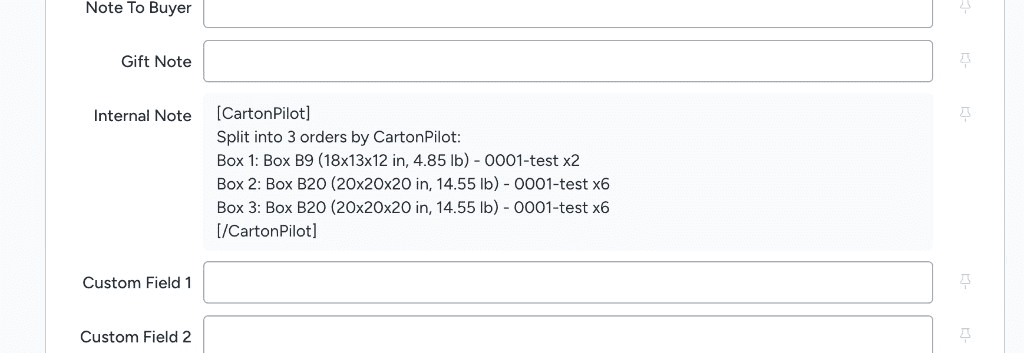
Recommend and tag (default) leaves the order intact, writes the per-box plan into the internal notes and applies a tag you create in ShipStation, so the packer splits it with the plan in hand. Create split orders makes CartonPilot create one child order per carton (
-2,-3, …), each with its own items, dimensions and weight, and trims the original to the first carton. Zero packer interaction. - 7
Dry run, then go live
Save with Dry run on and click Sync awaiting shipment now. The Recent orders table shows the box CartonPilot would have chosen for every open order, without touching ShipStation. When it looks right, switch dry run off and save. From then on every new order is packed automatically as it arrives.
- 8
What your packers see
Nothing new to learn. In ShipStation the order's package dimensions and weight are already filled in, an Internal Note lists the carton and its contents, and Custom Field 3 carries a small
cp:marker CartonPilot uses to avoid touching the order twice. Packers select everything in Awaiting Shipment and print labels.
Two ways to handle orders that need more than one box.
Both start from the same 3D packing result. The difference is how much of the split you want CartonPilot to perform inside ShipStation.
Recommend and tag
The order stays whole. CartonPilot writes the plan into the internal notes - each box, its dimensions and weight, and exactly which SKUs go in it - and applies a tag such as Multi-box. Packers filter on the tag and split the shipment with the plan in front of them. The default, and the safest place to start.
Create split orders
CartonPilot creates one child order per carton (100001-2, 100001-3, …) with the right items, dimensions and weight, and trims the original order to the first carton. Every order in Awaiting Shipment is now exactly one box, so bulk label printing needs no human decision at all.
Prefer to own the integration?
The connector is built on the same engine as the public API. One POST /api/v1/shipping-optimize with the order's items and your box line-up returns the carton choice, per-box weights and exact 3D placements, which your own code can write into ShipStation, your WMS, or anywhere else. Same objectives, same box sets, same metering.
See what better box choices would save you.
Paste an order (or a CSV) and the production engine shows parcels saved, box spend, and estimated FedEx/UPS Ground cost - right here, before you connect anything.
Your order
| Item | L | W | H | lb | Qty | |
|---|---|---|---|---|---|---|
Audited against a standard 7-box corrugated line-up using a first-fit baseline vs. cartonpilot-ultra.
Add your items and run the audit to see how many parcels and how much box spend CartonPilot can cut.
ShipStation box recommendations FAQ
Does ShipStation recommend boxes automatically?
Not on its own. ShipStation lets you define package types and pick one per shipment, but the choice is made by a person, order by order. The CartonPilot connector makes that choice for you: when an order lands in ShipStation, CartonPilot packs it against your carton line-up and writes the chosen box's dimensions and weight onto the order before anyone opens it.
Do I need a developer to set this up?
No. You paste a ShipStation API key into the CartonPilot dashboard, pick the box set to pack with, and turn it on. The setup takes about fifteen minutes and there is a dry-run mode that shows what CartonPilot would do before it changes anything. Teams that prefer to own the integration can still call the REST API directly.
Do I need to leave ShipStation?
No. Your packers never see CartonPilot. They keep working in ShipStation, the order already has the right package dimensions and weight, and rates are quoted against the real box. CartonPilot only decides the box; labels, rate shopping and order management stay in ShipStation.
What about orders that need more than one box?
You choose. In the default mode CartonPilot writes the per-box plan (which SKUs go in which carton) into the order's internal notes and applies a tag of your choice, so the packer splits the shipment in ShipStation with the plan in front of them. In split-orders mode CartonPilot creates one child order per carton, each with its own items, dimensions and weight, so there is nothing left for the packer to decide.
Where do item dimensions come from?
From your CartonPilot item catalog first, then from the ShipStation product record for the SKU (length, width, height, weight). You can build the catalog in one click: Dashboard → Item Catalogs → Import from ShipStation pulls every product that has dimensions, and CSV import covers the rest. If a SKU has dimensions in neither place the order is skipped and listed in the dashboard with the missing SKUs, so you can add them and re-sync. Nothing is written to an order CartonPilot could not fully pack.
How fast is it, and what if a webhook is missed?
ShipStation notifies CartonPilot the moment an order is created or imported, and the box decision is usually on the order within a few seconds. A background poller also re-checks awaiting-shipment orders every ten minutes, so a missed notification is caught before anyone reaches the bench.
What does it cost?
The connector is metered like the API, by items packed per month. The Free plan covers 1,000 items/month with no credit card. Paid plans are Starter at $49/month (10k items), Growth at $149 (50k), and Scale at $399 (250k), with Enterprise available on request. The connector is included on every plan; there is nothing extra to buy.
1,000 items/month on the Free plan, no credit card. About fifteen minutes from signup to the first order packed. Questions? Talk to us.
ShipStation is a trademark of Auctane, Inc. CartonPilot is not affiliated with or endorsed by ShipStation.